Removing the vocals from a song means pulling the human voice away from the instruments and ending up with the two as separate audio. It's the first step for anyone who wants a karaoke backing track, an acapella, or a single instrument on its own to learn from.
The good news: AI does this in minutes now. The bad news: most guides go quiet right after "download the file". This article covers both how to remove the vocal properly and the part that actually matters — what to do once you have.
What is removing vocals from a song for?
Vocal removal is the process of pulling just the voice (or just the instruments) out of a song's mix. You end up with two things: an instrumental with no words, and an acapella vocal on its own.
People do this mostly for:
- Karaoke: take the vocal out and sing over the instrumental yourself.
- Singing practice: turn the original vocal down and put your own voice on the same track.
- Learning an instrument: leave one instrument on its own and work on its part by ear.
- Production: work on a remix or a cover with clean channels.
In short, vocal removal turns a finished record into a personal workspace. The real difference shows up in whether you use that space just to listen, or to practise in.
How does vocal removal work?
Modern vocal removers use AI: a model trained on thousands of songs looks at the frequency and amplitude patterns in the audio, tells the signature of a human voice apart from that of the instruments, and rebuilds each source as its own channel.
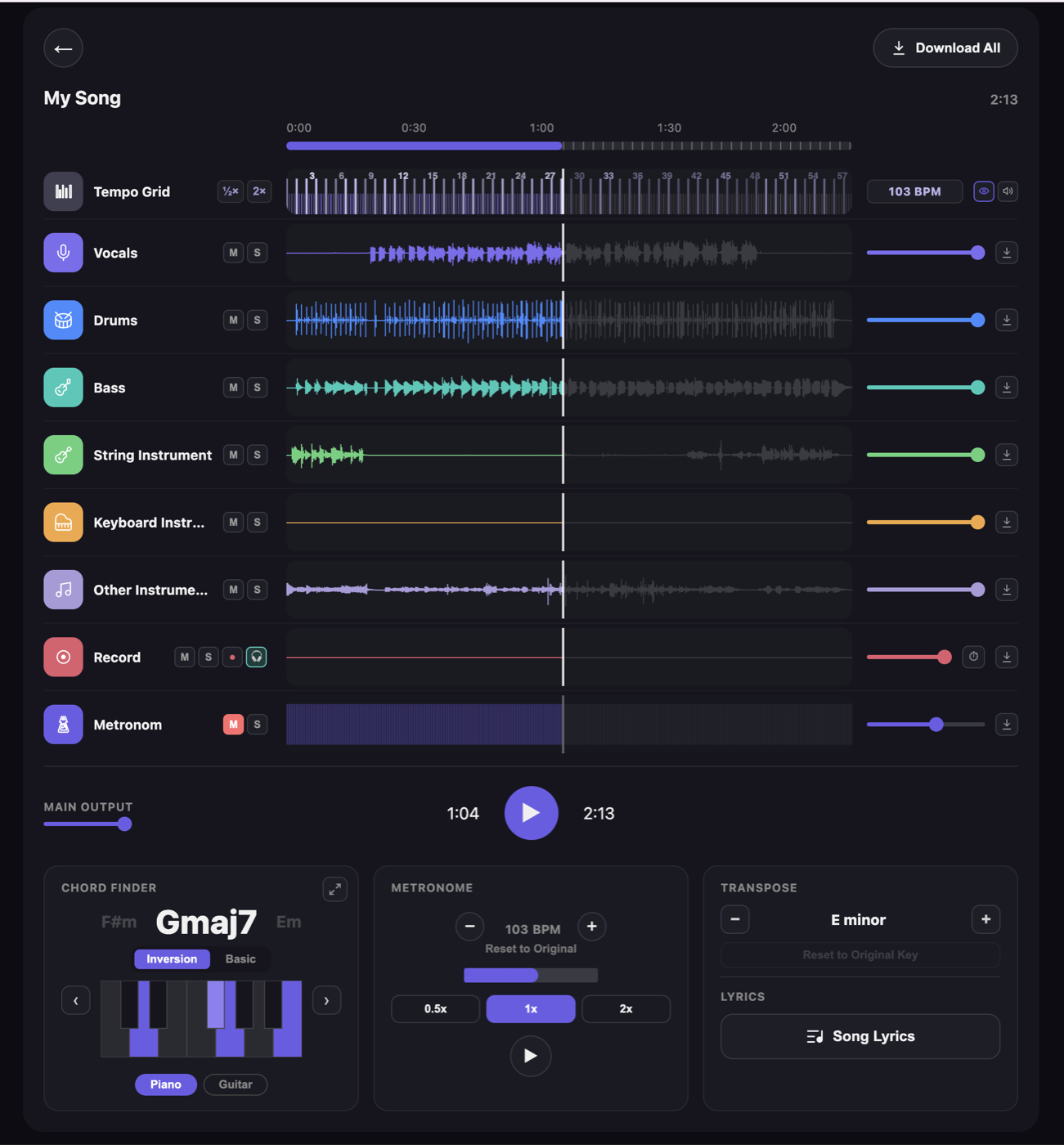
VoxoMix splits a song into these channels:
- Vocals — the sung voice
- Drums — rhythm and percussion
- Bass — bass guitar and low frequencies
- String Instrument — this is where guitars land (acoustic and electric), along with strings
- Keyboard Instrument — piano, organ, synth pads
- Other Instrument — anything that doesn't fit above (horns, effects, background layers)
So "vocal removal" is really one use of a bigger job — source separation. Taking the vocal out means leaving the instrument channels playing and muting the vocal one.
Not every song separates equally cleanly. Sparse productions where the instruments are few and the vocal sits out front come apart very neatly. On dense mixes with layers stacked on top of each other, small traces can remain. That's entirely normal and depends on how the song was built.
Two routes: online or offline?
There are two basic ways to remove a vocal, and the difference between them matters more than it looks.
Online (cloud) tools upload your song to a server, do the work there and send the result back. You get started quickly, but it costs you a few things:
- Your file leaves your machine and lands on somebody else's server.
- You need an internet connection and often an account or a queue.
- File size and length are usually capped.
Offline (on-device) tools do the whole thing on your own computer. The song is never uploaded; it works with no internet, on a plane.
If you're working on your own recordings, demos or unreleased tracks, that distinction becomes critical — your original work never leaves your device. We went deeper into why in offline stem separation.
VoxoMix sits firmly on that side: it runs entirely offline and on-device on Mac and Windows. After the first sign-in and licence check, the song never leaves your computer.
Step by step: how to remove the vocal from a song
1. Load the song. Drag the audio file into the window. MP3, WAV, FLAC, AAC and M4A open directly. For the best result, pick the highest-quality source you have — the reason comes shortly.
2. Wait for the analysis. The app splits the song into its channels. How long that takes depends entirely on your computer; your internet speed has no effect on it.
3. Mute the vocal. For a karaoke backing track, press M (mute) on the Vocals channel and the instrumental is what's left. For an acapella, do the opposite: press S (solo) on the Vocals channel so everything else drops away.
4. Listen and balance. Set the levels of the remaining channels by ear. You might leave bass and drums up and pull the rest down. Rather than muting completely, leaving a channel very quiet is a useful reference while you're still learning the song.
5. Export. Use the download button next to a channel to save the result. Lossless WAV gives the cleanest file; MP3 is fine when a compressed file will do.
That's the standard process. The real difference starts when, instead of stopping at step five, you add a sixth step — which is where we're going next.
Tips for the cleanest result
- Start with a high-quality source. A low-bitrate, noisy MP3 is already missing information, and the model can't invent what isn't there.
- Export as WAV. WAV is lossless, so nothing is lost to re-compression. MP3 squeezes the output one more time and gives up a little detail.
- Set your expectations correctly. Where the vocal and the instruments overlap in frequency, small artefacts (a faint echo or smear) can remain. That's not your mistake; it's the nature of the job.
- Use the channel controls. Instead of only removing the vocal, turn individual channels on and off to build exactly the mix you want.
In short: a clean input, a lossless output and realistic expectations decide most of the result.
After the split: it's not a file, it's practice
Most guides stop right here. But the real value of removing the vocal shows up when you start using that channel.
If you sing, mute the original vocal, listen to the backing through headphones and record your own voice into the Record channel. If you play an instrument, mute your own part and play over the rest of the song — we covered the per-instrument recipes for that in how to remove an instrument from a song.
Find the smallest thing that's broken → mute that channel → slow it down without changing the pitch → record over it → listen back → fix one thing.
Doing that across two separate programs is a chore: you separate in one, export the file, carry it to the other. VoxoMix puts those steps in one window — it removes the vocal, slows the song down without changing the pitch, shows you the chords, and records you with headphone monitoring. The Record channel is available on the Student and Producer plans.
If you want to build that practice loop step by step, see our complete guide to practising any song.
Common mistakes
- Using a low-quality source. A bad file won't produce a good separation; start with the cleanest recording you have.
- Uploading everything to the cloud. Sending personal or unreleased tracks to a server is a privacy risk; working offline removes it entirely.
- Downloading and stopping there. If you export the instrumental and forget it in a folder, you learn nothing; the gain is in what you do on top of it.
- Expecting a perfect split. Small artefacts are normal, and for practice "clean enough" is usually more than enough.
What each plan includes
| Feature | Free | Basic | Student | Producer |
|---|---|---|---|---|
| Channel separation | 4 channels | 6 channels | 6+ channels | 6+ channels |
| Mute / solo / levels | ✓ | ✓ | ✓ | ✓ |
| Record channel | — | — | ✓ | ✓ |
| MP3 export | — | ✓ | ✓ | ✓ |
| Lossless WAV export | — | — | — | ✓ |
| Batch export (all channels) | — | — | — | ✓ |
| Songs / length per month | 2 · 4 min | 10 · 5 min | 50 · 7 min | Unlimited |
To remove a vocal and work inside the app, the free plan is enough. If you want to take the file elsewhere, MP3 export opens up on Basic and lossless WAV on Producer. Current pricing is in the plans section.
Frequently asked questions
Can you remove vocals from a song for free?
Most tools offer a limited free tier. On the VoxoMix free plan you can process 2 songs a month up to 4 minutes each, mute and solo the channels, and use BPM detection and the piano chord finder. Exporting opens up from the Basic plan onward.
Why does vocal removal sometimes sound rough?
When the vocal and the instruments share the same frequencies, the model can't fully separate them and leaves what's called an artefact: a faint smear or echo. A high-quality source and a lossless WAV export keep that to a minimum; on dense, heavily layered mixes some trace is normal.
Can I record myself over the track after removing the vocal?
Yes. Mute the Vocals channel, listen to the backing through headphones and record your own voice into the Record channel; listen back afterwards, and delete and retry if you don't like it. The Record channel is available on the Student and Producer plans.
Which file format gives the cleanest result?
A lossless WAV export gives the cleanest result; MP3 loses a little detail when it re-compresses. The input file should also be the highest quality you have. WAV export is on the Producer plan, MP3 export from Basic onward.
Can I remove vocals offline, without an internet connection?
Yes. After the first sign-in and licence check, the processing happens entirely on your own computer. The file is never uploaded to a server, there's no queue, and no internet connection is needed.
How many channels can a song be split into?
VoxoMix splits a song into Vocals, Drums, Bass, String Instrument, Keyboard Instrument and Other Instrument. How many you get depends on your plan: 4 on Free, 6 on Basic, and 6+ on Student and Producer.
Conclusion
Removing the vocal from a song isn't a technical speciality any more — it's a few minutes of work. What matters is picking the right tool and not stopping once the file is split.
Remember three things: a clean source plus a WAV export gives the best quality · working offline keeps your file private and independent of a connection · and the real value comes after the split — sing over it, play over it, and record yourself.
For an end-to-end tour of every feature, how to use VoxoMix is a good starting point.
Download VoxoMix free and make your first karaoke track today.
Download Free