You have found the song you want to play, and now you need the chords. You search, and up come five different pages for the same track. One says capo 2, one says nothing about a capo, and in the chorus one has Am where another has F. All of them came out of somebody's ear, and none of them is looking at the recording itself. You start playing, something doesn't sit right, and you have no way of knowing whether the mistake is yours or the page's.
This guide compares the three honest ways to get a song's chords, explains what automatic detection is actually doing under the hood, and — most importantly — shows you what to do when the detection looks wrong. Because no method is perfect, and working with that in mind will get you further, faster, than trusting a chord sheet blindly.
Three ways to get a song's chords
In practice you have three options, and each of them charges you differently.
1. Working them out by ear
The slowest route and the one that teaches you the most. You listen for the bass, find the root, then decide whether it's major or minor on top. What you gain isn't the chords — it's a skill you never lose again. The price is time: for a beginner, a single song can eat an entire evening.
2. Chord archive sites
Fast, and often good enough. But archives built on volunteer submissions have three chronic problems: it's rarely clear which recording was transcribed (album, acoustic version, live?), capo and key information is frequently missing, and whoever wrote the page worked it out by ear too. For lesser-known tracks, there's often no page at all.
3. Automatic chord detection
The software listens to the recording itself and lays the chords out on a timeline. It's as fast as an archive site, but its coverage is unlimited — it works on any audio file you have: live recordings, covers, rehearsal takes, your own unreleased demo. In exchange it asks for attention: trust the output without understanding what the engine heard, and you'll learn the wrong thing.
| By ear | Archive site | Auto detection | |
|---|---|---|---|
| Speed | Slow | Fast | Fast |
| Available for every song? | Yes | No | Yes |
| Looks at your recording? | Yes | Unclear | Yes |
| Key/capo reliability | High | Low | High |
| Does it make you better? | A lot | No | If you check it |
The best result comes from putting them against each other: start with detection, verify with your ear. Playing through the progression the engine produced skips the hardest part of transcribing from scratch, while still keeping your ear in the loop.
How automatic chord detection works
Briefly: the software breaks the audio into frequencies, works out which of the twelve notes are sounding at each moment, matches that set of notes against known chord shapes, and smooths the result over time by locking it to the beat grid. So it isn't looking up a song title in a database — it listens to the recording in front of it. That's why it works on a track nobody has ever transcribed.
For the same reason, you can predict where it will struggle:
- Dense mixes — in heavily layered productions the harmony sits under the drums and effects.
- Heavy distortion — clipping adds harmonics that were never in the original note.
- Wide voicings — in jazz, 9ths, 11ths and 13ths sit equally close to more than one chord name.
- Slash chords — mistaking the bass note for the root is the classic confusion (G/B and Bm look alike from below).
- Passages with no chord — during a drum intro or a single-note riff there is no chord to display. A blank cell is not a bug.
The rule: treat detection as a very good first draft. It hands you 90% of the song for free — and checking the remaining 10% is the part you learn the most from anyway.
Step by step: finding a song's chords
1. Load the song. Drag the audio file into the window. MP3, WAV, FLAC, AAC and M4A open directly — no conversion needed. The analysis runs on your own computer; the file is never uploaded anywhere.
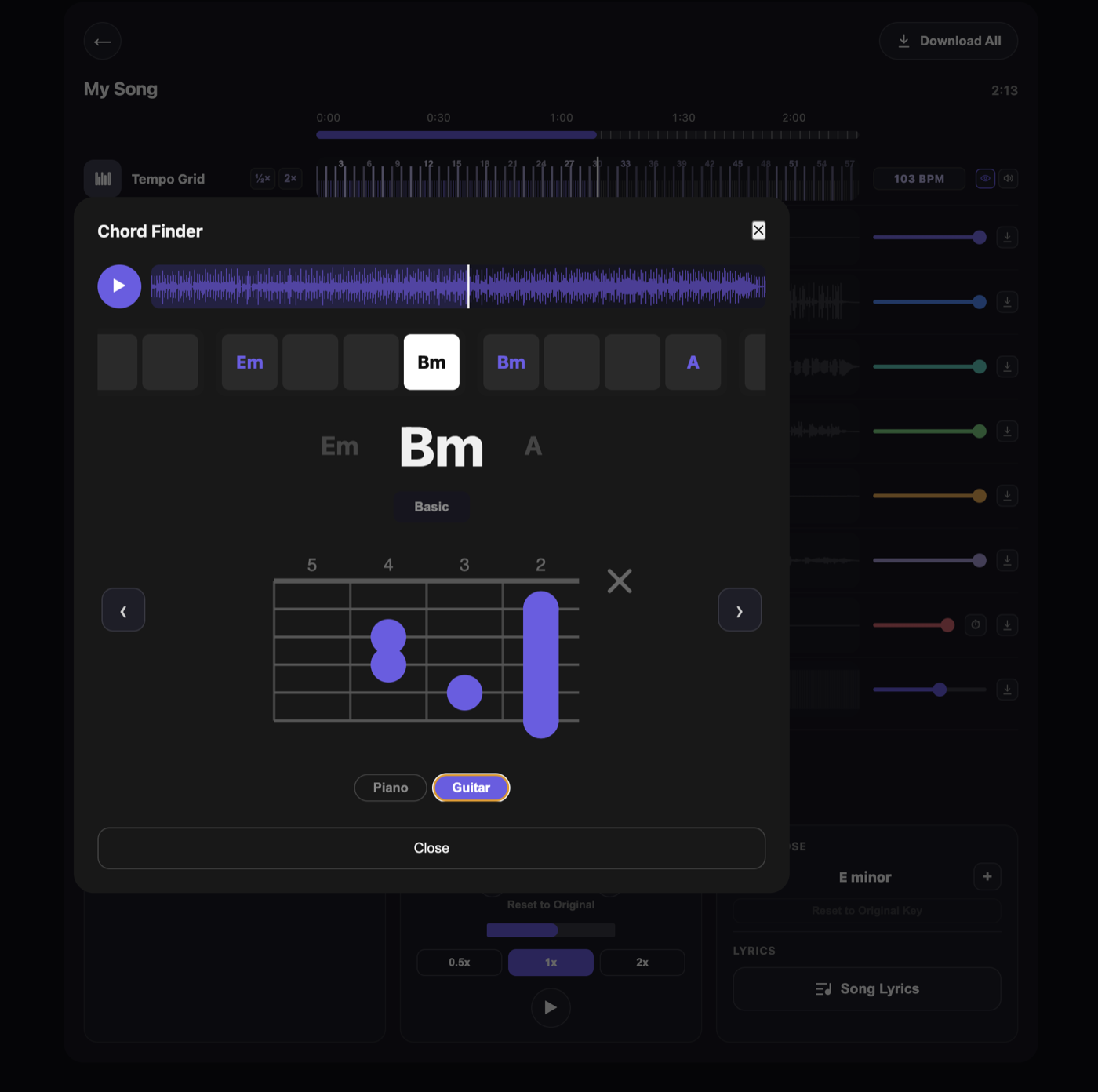
2. Look at the chord finder. As soon as the analysis finishes, the Chord Finder panel shows three chords: the one just past on the left, the one playing right now in large type in the middle, and the one coming up on the right. They scroll by on their own as the song plays.
3. Enlarge it. The ⤢ button in the corner of the panel opens the chord finder full-window. When you're sitting at your instrument you're a metre from the screen — the large view exists for exactly that.
4. Choose piano or guitar. The Piano | Guitar toggle at the bottom switches views. The guitar view shows the chord as finger positions on the fretboard, marking strings you shouldn't play with an ×.
5. Basic or Inversion. Basic gives you the most common shape. Inversion shows the inversions — useful when you want to move your hand as little as possible on piano, or find a guitar position closer to the next chord.
6. Step through the chords. The ‹ › arrows move chord by chord without playing the song, which saves you rewinding constantly while you work on a difficult change.
Reading the chord strip — this is the real technique
The most valuable thing about a chord finder is not the chord it names; it's that it shows you the next one in advance. In the view above, Bm is in the middle and A is waiting on the right. That second of forewarning changes your playing in two ways:
- You play through the change instead of chasing it. Reacting after you hear a chord change is always late; seeing it lets you prepare your hand.
- You learn structure instead of memorising. Watching the same four chords come round on the strip sticks far better than "remembering" the song.
A useful exercise: follow the strip and play through the song once hitting only one strum on each chord change. Drop the rhythm entirely and just concentrate on arriving at the right chord at the right moment. Once the progression is in place, adding the rhythm back is surprisingly easy. The full method is in our complete guide to practising any song.
When the detection looks wrong: a four-step check
If a chord sounds wrong to you, don't guess — open the track up and look. You have four moves, in order.
1. Slow it down
The 0.5x button in the metronome panel drops the song to half speed with no change in pitch — only time stretches. A chord change that flies past becomes obvious at half speed. We covered why this works and how to use it properly in how to slow down a song without changing the pitch.
2. Isolate the harmony
This is the most effective move. Because the song is split into channels, you can hit S (solo) on the String Instrument or Keyboard Instrument channel: drums, bass and vocals drop away and you're left with just the instrument playing the chords. Harmony you couldn't hear in a crowded mix is suddenly exposed. For the other uses of splitting channels, see how to remove an instrument from a song.
3. Check the key
The Transpose panel names the song's key (E minor, for example). Compare the chord you're unsure about against the diatonic chords of that key. A chord from outside the key isn't necessarily wrong — but it earns a second look.
4. Decide with your ear
Play the chord against the recording. If it doesn't sit, try the three most likely alternatives: the relative major/minor (Am ↔ C), a sus2 / sus4 (where the third is ambiguous), and the same chord over a different bass (like G/B). Those three account for most of what automatic detection misses.
This may look like error correction, but it's actually the most efficient ear training you can do: listening when you know what you're listening for teaches you far faster than listening into the void.
Capo, key and transposing
Detection gives you the real chords in the recording — not the shapes a guitarist with a capo sees. Someone playing a D shape with a capo on the 2nd fret is actually playing E, and detection will tell you E. Both are correct; they just describe different things.
If the shapes are awkward for you, you have two routes:
- Move the song. Use −/+ in the Transpose panel to bring the track into a key you play comfortably, then Reset to Original Key to go back. Transposing is available from the Basic plan upward.
- Work out the capo yourself. If the song is in E and you want to play D shapes, that's capo 2. The real key from detection is exactly what you need to do that maths.
If you sing, transpose without hesitation: pulling a song written for someone else's range into your own is a far better use of a practice hour than fighting for high notes.
Export the chord sheet as a PDF
On the Student and Producer plans you can export the chord sheet as a PDF. If you teach, it leaves your student with something to take away; if you're working alone, you get a printout you can read at your instrument without a screen. Lyrics transcription is available from Basic upward, so singers who want lyrics and chords together can use both.
What each plan includes
| Feature | Free | Basic | Student | Producer |
|---|---|---|---|---|
| Chord finder (piano) | ✓ | ✓ | ✓ | ✓ |
| Chord finder (guitar diagram) | — | — | ✓ | ✓ |
| BPM detection + metronome | ✓ | ✓ | ✓ | ✓ |
| Transpose | — | ✓ | ✓ | ✓ |
| Lyrics transcription | — | ✓ | ✓ | ✓ |
| PDF export (chord sheet) | — | — | ✓ | ✓ |
| Songs / length per month | 2 · 4 min | 10 · 5 min | 50 · 7 min | Unlimited |
For finding chords, the free plan is enough — the chord finder in piano view, BPM detection and the metronome are all available on it. Current pricing and the full comparison are in the plans section.
Frequently asked questions
How accurate is automatic chord detection?
On sparse arrangements — pop, rock and folk built around a guitar or piano — the result is usually good enough to play straight away. Dense mixes, heavy distortion, wide jazz voicings and slash chords are where every detection engine struggles. Treat the output as a very good first draft and let your ear be the final judge.
Do I need an internet connection to find chords?
No. Once you have signed in and verified your licence, analysis runs entirely on your own computer. The song is never uploaded to a server, so you can find chords on a plane or in a room with no connection.
Which plan includes the guitar chord diagram?
The chord finder in piano view is available on the free plan. The guitar diagram view is included in the Student and Producer plans.
Can I find chords in my own recording or a cover version?
Yes. Detection doesn't look a song up in a database — it analyses the audio in front of it. That means live recordings, covers, rehearsal takes and your own unreleased demos all work.
Can I print the chord sheet?
On the Student and Producer plans you can export the chord sheet as a PDF.
How do I find out what key a song is in?
When the analysis finishes, the Transpose panel shows the key (E minor, for example). From the same panel you can move the key and return to the original with Reset to Original Key.
Conclusion
Finding chords is no longer a search problem — it's a verification problem. Automatic detection hands you the skeleton of the song in seconds; your job is to test that skeleton against your ear. Slow it down, isolate the harmony, check the key, play it and listen. Do that loop on a few songs and two things happen at once: you learn the song, and you need the software a little less next time.
If you want an end-to-end tour of every feature, start with how to use VoxoMix; if you're wondering why all of this runs on your own machine, see offline stem separation.
Download VoxoMix free and work out the chords to your first song today.
Download Free