Playing along to a record has a quiet problem: you're playing at the same time as the guitarist on the recording. They're louder than you, they're flawless, and they can't hear what you're doing. Because you can't hear yourself either, you have no idea whether you're early or late, whether the note came out clean, or whether the chord change landed. You can practise for an hour and learn nothing.
The fix is simple and old: take your own part out of the mix. That's exactly why playing with a band teaches you so much — there, nobody fills your space for you. Once a song can be split into channels, you can set up the same thing on your own: drums, bass and keys keep playing, and the guitar-shaped hole waits for you.
Why remove your own part?
Playing along with the original sounds good — and that's precisely the problem. What sounds good isn't you, it's the record. Take your own part out and four things change at once:
- You hear yourself. Your timing, your tone, how clean you are — all of it surfaces. There's nowhere to hide.
- Your timing is genuinely tested. With drums and bass still playing, you notice instantly when you come in early or late — feedback a metronome can't give you, because it arrives from inside the music.
- You have to fill the space. If you stop where the recorded guitarist stops, the gap is obvious. You end up learning the whole song, not just the riff you like.
- It feels like a rehearsal. You play as if you had a band, which is the closest thing to preparing for a stage.
This is the logic behind minus-one tracks and backing tracks. The difference is that instead of buying a generic backing track, you're making one out of the song you actually want to learn.
The channels: what's where?
Once a song is loaded and analysed, you get channels you can control independently:
- Vocals — the sung voice
- Drums — rhythm and percussion
- Bass — bass guitar and low frequencies
- String Instrument — this is where guitars land (acoustic and electric), along with strings
- Keyboard Instrument — piano, organ, synth pads
- Other Instrument — anything that doesn't fit above (horns, effects, background layers)
As a guitarist, don't go looking for a channel called "Guitar" — the one you want is String Instrument. And trust the waveform and the S (solo) button over the labels: soloing a channel for two seconds tells you exactly what's in it.
Each channel has an M (mute) and S (solo) button, its own volume slider, and a button to download that channel on its own. There's also a Record channel and a Metronom channel locked to the song's own tempo.
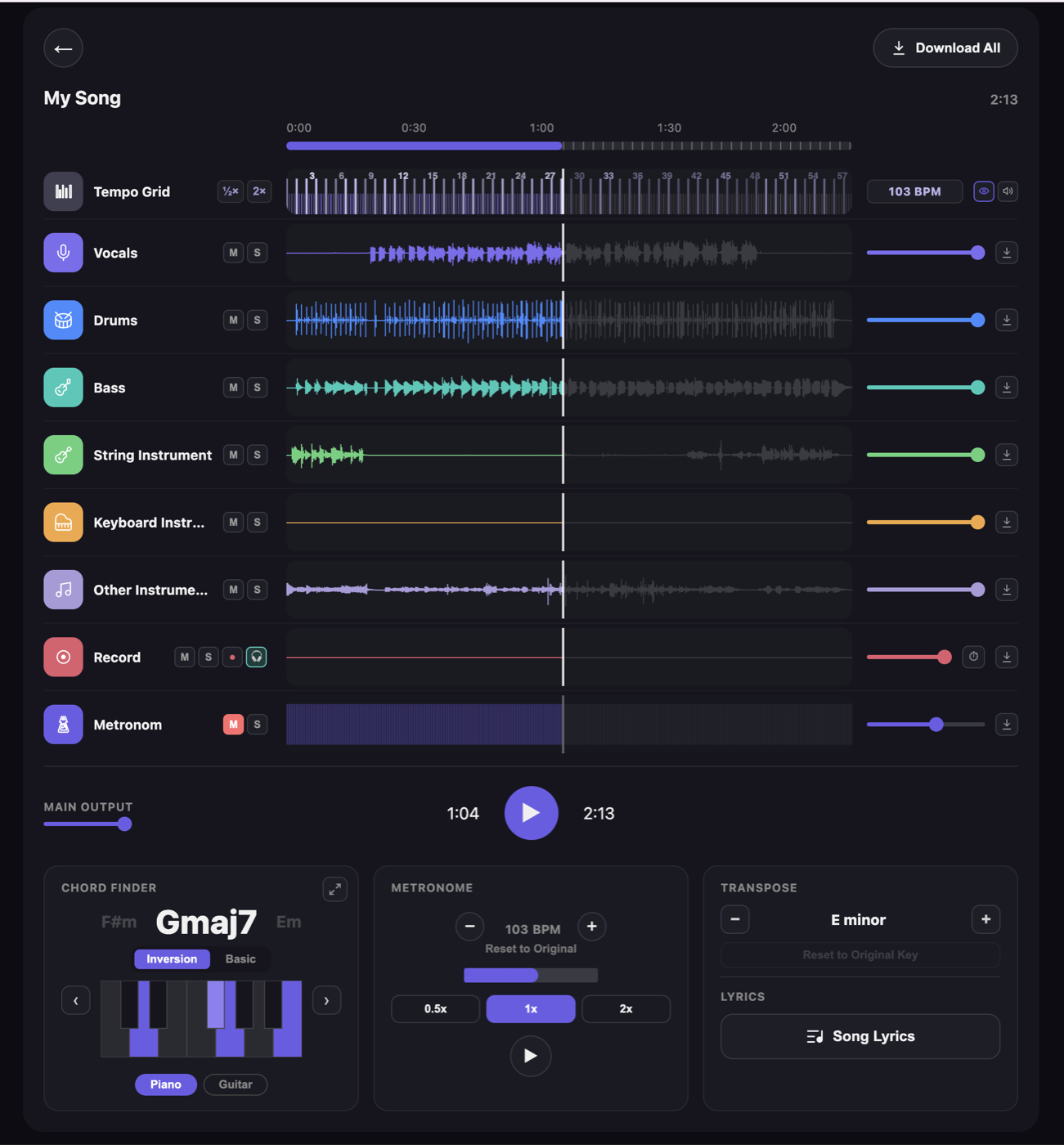
Step by step: muting an instrument in a song
1. Drop the song in. MP3, WAV, FLAC, AAC and M4A open directly. The analysis happens on your own computer; the file never goes to a server.
2. Wait for the analysis. On Apple Silicon Macs a 3–4 minute song typically takes a few minutes. That time depends entirely on your computer — your internet speed has no effect on it at all.
3. Confirm the channel. Press S on the channel holding the instrument you want to remove and listen for a few seconds. Once you're sure it's the right one, switch S back off.
4. Mute it. Press M on that channel. The song carries on; that instrument is gone.
5. Try turning it down instead of off. Rather than muting, pulling the volume slider down to very quiet helps while you're still learning: you hear the original part like a whisper underneath while your own playing sits on top. As the song settles in, take the slider to zero.
6. Bring in the metronome if you need it. The metronome channel is locked to the song's own tempo. If you've removed the drums as well, turn it on to hold the time; if the drums are still there, you don't need it.
Recipes for each instrument
Guitarist
Mute: String Instrument. Keep: Drums, Bass, Keyboard, Vocals. Leaving the vocals in makes it easier to track where you are in the song. If you're working on a riff, mute the vocals too — then your only reference is the rhythm section, which is harder and teaches you more.
Bassist
Mute: Bass. Keep: Drums and everything else. This is the most brutal and most productive exercise on the list: with the bass gone, the bottom of the mix empties out and it's nakedly obvious whether your notes are filling it. A millisecond of drift against the drums shows.
Drummer
Mute: Drums. Keep: Bass and the harmony. Unlike practising to a metronome, here you're keeping time with music; finding the groove by listening to the bass is a far more realistic skill than locking to a click.
Pianist / keyboard player
Mute: Keyboard Instrument. Keep: Drums, Bass, Strings. If the song's keyboard part is several layers (pad plus piano), they all go together in that one channel — isolating only the piano isn't possible.
Singer
Mute: Vocals. Keep: Everything. The classic karaoke setup. If the song sits outside your range, pull the key to you in the Transpose panel — a far better use of practice time than fighting for high notes.
Soloist / improviser
Mute: String + Keyboard + Vocals. Keep: Drums and Bass. What's left is the rhythm section on its own: a living backing track you can build anything on top of. Keep the chord finder open so you can see the changes.
Slow it down, open the chords
Muting an instrument works on its own, but its real power shows when you combine it — all three run at the same time:
- 0.5x — the metronome panel drops the song to half speed. The pitch doesn't change, only time stretches. Playing a hard passage cleanly at slow speed and climbing back up beats grinding away at full tempo. The whole method is in how to slow down a song without changing the pitch.
- Chord finder — if you've removed the channel you play, you're no longer hearing the chords, so you need to follow them on screen. The chord strip shows the next chord before it arrives. Details in how to find the chords of a song.
- Tempo grid — the strip at the top shows beats and bar numbers, so you can say "from bar 34" instead of rewinding to the start every time.
Record yourself and listen back
The logical next step after removing your own part is hearing what you put in that gap. You can't listen to yourself objectively while playing — your attention is on playing. The Record channel separates the two: you record your playing over the song, monitor yourself through headphones as you go, then listen back. If you don't like it, delete it and go again.
On playback you hear things you missed completely while playing: a chord change that's consistently a hair early, a string that's getting noisy, a chorus that speeds up. The Record channel is available on the Student and Producer plans.
A practical loop: mute your channel → play a pass at 0.5x and record it → listen back → fix one thing → move the speed up a notch. The full version of this loop is in our complete guide to practising any song.
The honest limits of separation
Splitting channels isn't magic, it's estimation. The software infers, from a single mixed recording, which sound belongs to which instrument. On most songs the result is more than clean enough to practise with — but traces remain in these cases, and it's better to know that up front:
- Instruments sharing a frequency range — a thick guitar sitting on top of a synth pad can leave a trace of one in the other.
- Heavily compressed, layered production — modern pop mixes glue everything together, which makes pulling it apart harder.
- Heavy effects — long reverb and delay tails keep sounding after the instrument itself has stopped, and those tails can bleed into another channel.
- Live recordings — the microphones already picked up each other; the separation is blurred at the source.
What matters for practice is this: you don't need perfect silence to work. Even 90% of your part disappearing is enough for you to be heard. At full tempo, a small amount of bleed goes unnoticed anyway.
If you're curious about why all of this runs on your own computer and what that buys you, see offline stem separation.
Exporting the backing track
If you want to take the backing track out of the app — onto your phone, to a rehearsal, into a DAW — you can download the channels:
| Feature | Free | Basic | Student | Producer |
|---|---|---|---|---|
| Channel separation | 4 channels | 6 channels | 6+ channels | 6+ channels |
| Chord finder | Piano | Piano | Piano + guitar | Piano + guitar |
| Record channel | — | — | ✓ | ✓ |
| MP3 export | — | ✓ | ✓ | ✓ |
| Lossless WAV export | — | — | — | ✓ |
| Batch export (all channels) | — | — | — | ✓ |
| Songs / length per month | 2 · 4 min | 10 · 5 min | 50 · 7 min | Unlimited |
If you're only going to work inside the app, the free plan is enough: 4-channel separation, mute, solo and the metronome are all available on it. Current pricing is in the plans section.
Frequently asked questions
Can I remove just the guitar from a song?
Yes. Guitars land on the String Instrument channel; press M on that channel and the rest of the song keeps playing. The same works for Bass, Drums, Keyboard Instrument and Vocals.
Is the separation completely clean?
No, and it's better to work knowing that. When source instruments share the same frequency range, small amounts of bleed can remain. On sparse arrangements the result is more than clean enough to practise with; on densely layered, heavily compressed productions some trace is normal.
Can I export the backing track with the instrument muted?
Downloading channels individually as MP3 is available from the Basic plan upward. The Producer plan adds lossless WAV and a batch export that saves every channel at once.
Can I slow the song down and still play along?
Yes. The 0.5x button in the metronome panel halves the speed without changing the pitch. Muting channels, slowing the tempo and the chord finder all work at the same time.
Can I record myself and listen back?
The Record channel is available on the Student and Producer plans. You record over the song, monitor yourself through headphones, and listen back afterwards.
Does this need an internet connection?
No. After the first sign-in and licence check, separation runs entirely on your own computer and the song is never uploaded to a server.
Conclusion
Removing an instrument from a song looks like a technical trick, but it's really a way of working: building an environment where you can hear yourself. Once you stop competing with the musician on the record and take their place instead, you walk away from an hour of practice having actually learned something. Mute the channel, drop the tempo, open the chords, record yourself and listen back — those four moves turn practising at home into something closer to a rehearsal.
For an end-to-end tour of every feature, how to use VoxoMix is a good starting point.
Download VoxoMix free and build your first backing track today.
Download Free