Short answer: the fastest way to learn the hard part of a song is not to play the whole song again and again, but to loop just those few bars. You set an A point at the start of the section and a B point at the end; when playback reaches B, it jumps back to A on its own. Work it slowly first, then raise the speed in small steps up to the original tempo.
Below: how to choose the section, how to set up an A–B loop in VoxoMix, and how to climb back to full speed with a "tempo ladder".
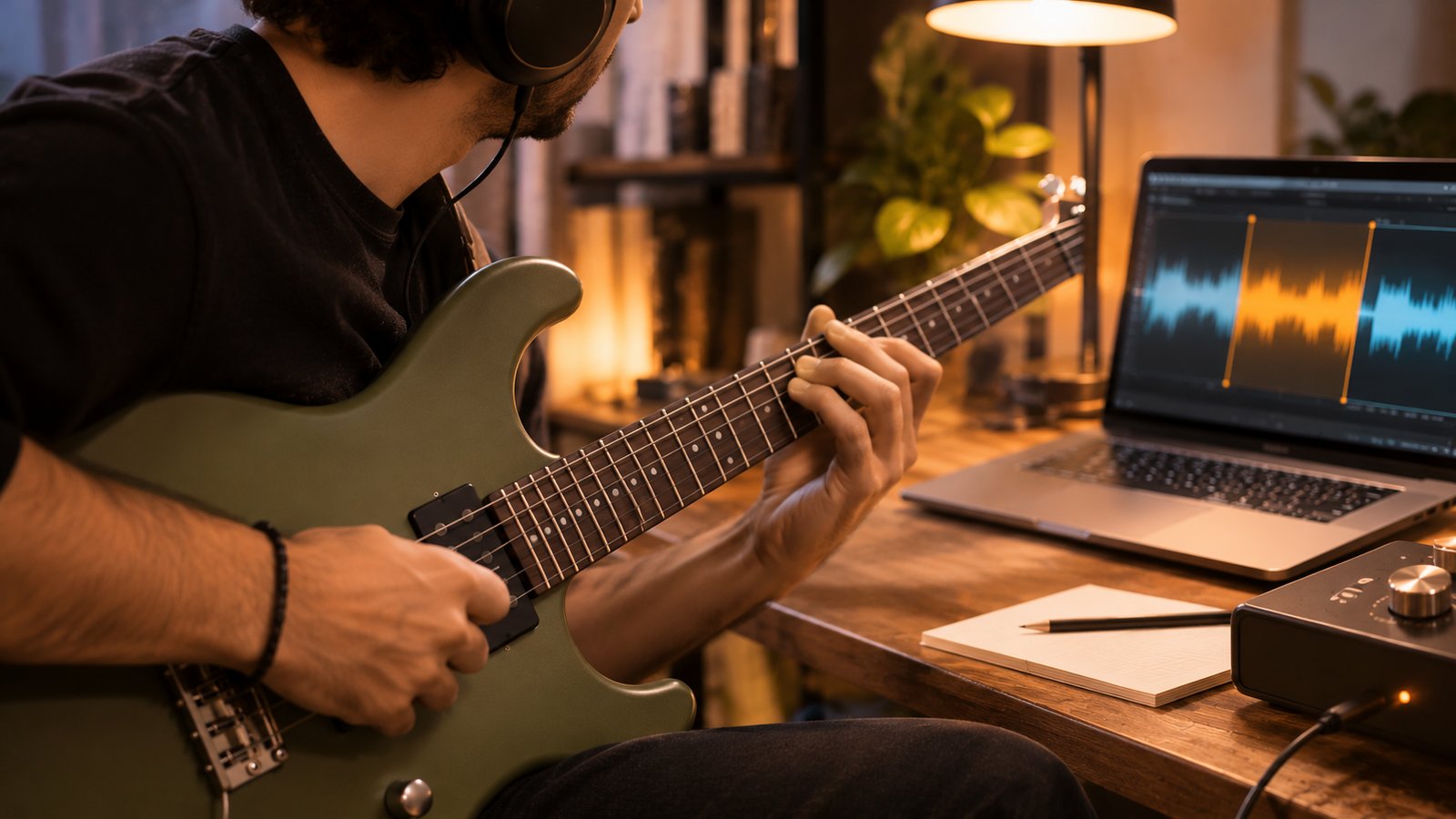
Why loop a section instead of the whole song?
Most of us learn a song the same way: start from the top, stumble at the hard part, scrub back, start again. The tricky passage might last eight seconds, yet to practise it we replay minutes of easy material every time. The easy parts get very good; the hard part stays half-learned.
A loop flips that balance: all of your practice time goes to the spot where you stumble. Playing the same transition back to back lets your hands and your ear settle into it, and there is no scrubbing or hunting for the right place. Your hands stay on the instrument.
It works for any instrument and for singers: a fast solo, a drum fill, a tricky two-hand piano passage, a long vocal line. The bigger picture is in our complete guide to practising any song; this article zooms in on its most useful technique.
Which section should you loop?
Whether a loop helps depends a lot on where you set it. Three simple rules:
- Keep it short. The spot you stumble on is usually one or two bars, so start with a loop of 2–4 bars.
- Start a beat early. Put A slightly before the hard part so you enter it with a run-up, as you will in the real song.
- Include the next downbeat. Put B on the first beat of the following bar. Often the real problem is the exit: landing on the next chord in time.
If the hard part is long, loop each half separately, then join them. Each time a piece settles, widen the loop by one bar.
Step by step: setting up an A–B loop in VoxoMix
VoxoMix is a desktop app (Mac and Windows) that splits a song into stems on your own computer and detects its tempo and chords. The A–B loop is available on Basic and higher plans; on the free plan the Loop button appears dimmed and clicking it opens the upgrade window.
- Open the song. Drag your MP3, WAV, FLAC or M4A file into the app. Stem separation and tempo analysis run on your own computer; the file is never uploaded to a server.
- Open the Loop panel. Click the Loop button on the right of the transport row. The small A–B Repeat panel opens.
- Set the start. Play the song and press A: Start one beat before the hard section. A is placed wherever the playhead is at that moment.
- Set the end. When the section ends, on the first beat of the next bar, press B: End. As soon as both points exist the repeat turns on by itself: the stretch between A and B is shaded amber on the timeline and the Loop button lights up. Every time playback reaches B, it jumps back to A.
- Adjust if needed. Press A again to move the start; if the new A lands after the old B, B is cleared and you are asked to set it again. B cannot be placed before A.
- Toggle and clear. The Repeat: On / Off button pauses the loop without deleting the points, which is ideal for listening on through the song and then coming back to the same spot. Clear removes both points.
The Space bar starts and stops playback and the loop stays in place. A and B belong to that song; opening a different song resets them.
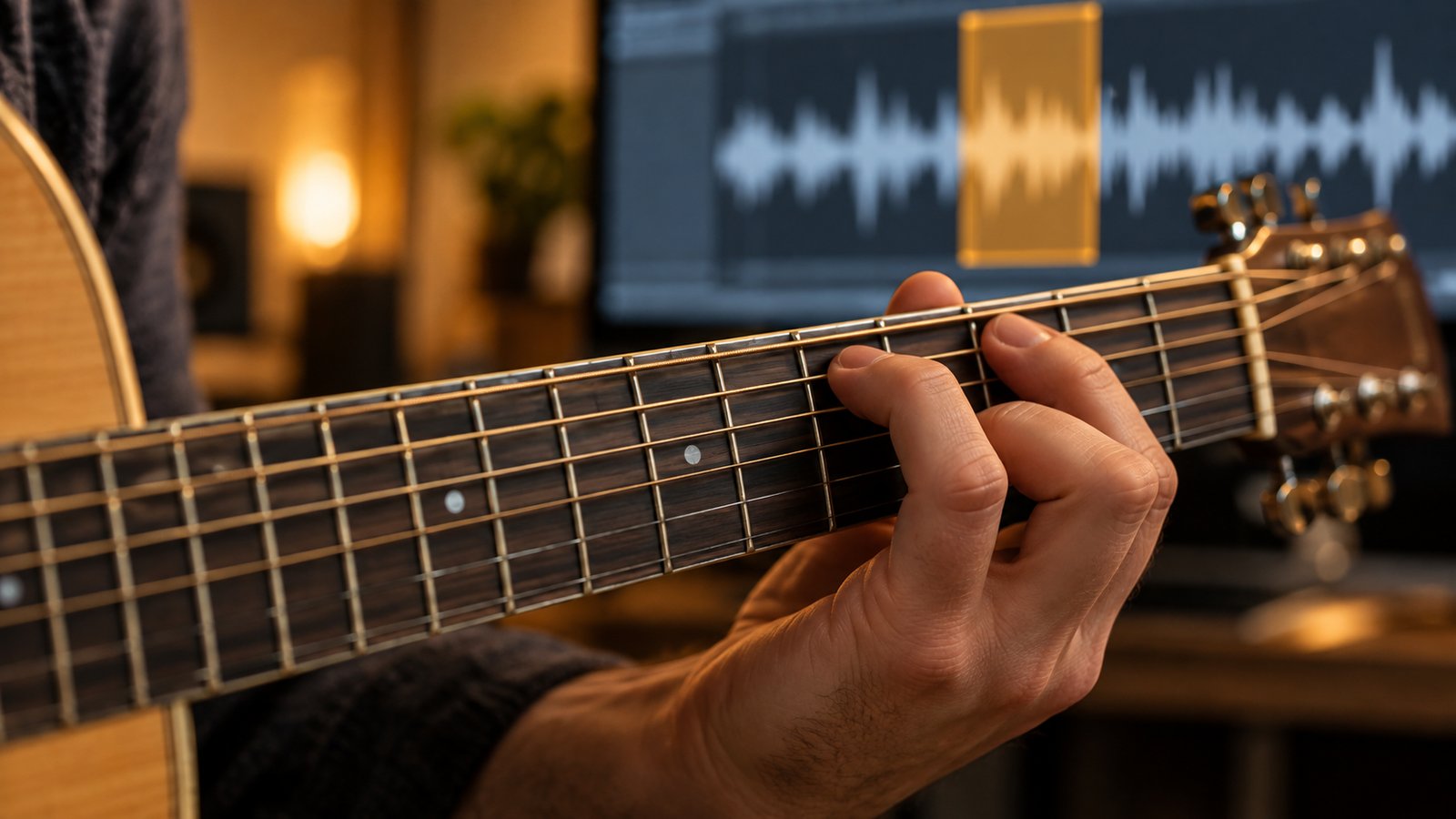
How do you get back to full speed?
The most common mistake is trying to play the hard section at full speed straight away. Build a "tempo ladder" instead:
- Find a tempo you can play cleanly. Slow the song down with the speed slider in the Metronome panel. The slider goes down to half speed (0.5); the pitch does not change, so the song stays in the same key when slowed. Stop at the first speed where you can play the section relaxed and without mistakes.
- Ask for clean repetitions in a row. Don't raise the speed until you have played the loop several times in a row (say, three) without a mistake; a mistake resets the count.
- Speed up in small steps. Once the rule is met, nudge the speed up. The − and + buttons change the tempo one BPM at a time; a few clicks are enough. The song's current BPM is shown in the panel, so you always know how far you still have to go.
- Step down if you stumble. If mistakes start at the new speed, go back one step, play a few clean rounds, then try again.
- Go back to the original. When you are close to the target, press Reset to Original to try the song's real tempo.
One important detail: in VoxoMix the A and B points are kept in the song's own time. Changing the speed does not break the loop; the same bars keep repeating at the new tempo. We explain how slowing down affects the sound, and which speeds are useful, in our guide to slowing down a song without changing the pitch.
When you finish the ladder, switch the loop off and play the section inside the song, starting a few bars earlier. Playing it in the flow of the song is a skill of its own.
Combining the loop with stems and the metronome
The loop gets stronger with VoxoMix's other tools:
- Mute your own part. Mute the stem that plays your part with its M button; you play that part and the rest becomes your band. We explain which stem to use for which instrument in our guide to removing an instrument from a song.
- Listen first, then play. Solo the stem with S and listen to the loop for a few rounds, then mute it and play over it.
- Turn on the metronome. In fast passages it is hard to notice when the rhythm drifts. The K key turns the metronome on and off; it follows the song's tempo, so it slows down when you slow the song down. More on finding a song's tempo and practising with a click in our guide to finding the BPM of a song.
- If you need a different key. If you are working on vocals and the section sits too high, transpose (Basic and higher) lowers the song in semitone steps; the loop and the tempo stay the same.
Common mistakes
- Making the loop too long. Loop the whole chorus and you still play the hard transition once a minute. Narrow it.
- Speeding up too early. One clean take can be luck; stick to the in-a-row rule.
- Letting mistakes slide. Repeat a mistake in the loop and you learn the mistake. Lower the speed or shorten the loop.
- Never leaving the loop. Playing the section in a loop is only half the goal. As a last step, switch the loop off and play the section inside the song.
What's in each plan?
| Feature | Free | Basic | Student | Producer |
|---|---|---|---|---|
| Songs per month | 2 | 10 | 50 | Unlimited |
| Max. length | 4 min | 5 min | 7 min | Unlimited |
| Speed change + metronome | ✔ | ✔ | ✔ | ✔ |
| A–B loop | — | ✔ | ✔ | ✔ |
| Stem separation | 4 | 6 | 6+ | 6+ |
| Transpose | — | ✔ | ✔ | ✔ |
| Record channel | — | — | ✔ | ✔ |
Prices: Basic $2.99/month · Student $8.99/month · Producer $13.99/month; yearly billing saves 20%. You can try the Producer plan free for 14 days (the trial asks for a card, converts to a paid plan on day 14, and you can cancel any time). Slowing down and the metronome are available on the free plan; the A–B loop needs Basic or higher.
VoxoMix runs on macOS (M1–M5) and Windows 10/11; all analysis happens on your own computer and your song is never uploaded to a server.
Frequently asked questions
How do I play one part of a song over and over?
Use an A–B loop: press A at the start of the section and B at the end, and playback jumps back to A every time it reaches B. In VoxoMix this is the Loop button on the transport row.
Is the A–B loop free?
In VoxoMix the A–B loop is on Basic and higher plans (Basic is $2.99/month); slowing down and the metronome are free. The Producer plan has a 14-day free trial.
Can I slow the song down while it loops?
Yes. The speed slider slows the song down to half speed without changing the pitch. Because A and B are kept in the song's own time, changing the speed does not break the loop.
How many bars should a loop be?
Start with 2–4 bars: A one beat before the hard part, B on the first beat of the next bar.
When should I raise the tempo?
When you can play the loop several times in a row without a mistake. Raise it a few BPM; if mistakes start, step back down.
Does my song leave my computer?
No. VoxoMix analyses and plays the song on your own computer; the file is never uploaded to any server.
Conclusion
Learn the hard part on its own. Remember three things: set a short loop (start a beat early, end on the next downbeat), start at a speed you can play cleanly, and raise the tempo in small steps once clean repetitions come in a row. When you reach the target speed, switch the loop off and play the section inside the song.
This week, start with the two bars that trip you up most in the song you are learning.
Download VoxoMix: slowing down and the metronome are free; try the A–B loop free for 14 days with the Producer trial.
Download Free